 Hanki
How to Fix 100% Disk Usage in Windows 11
Seeing 100% Disk in Task Manager does not necessarily mean your SSD is transferring data at its maximum speed.
It means Windows considers the drive fully occupied with current I/O requests.
Find the Process Responsible
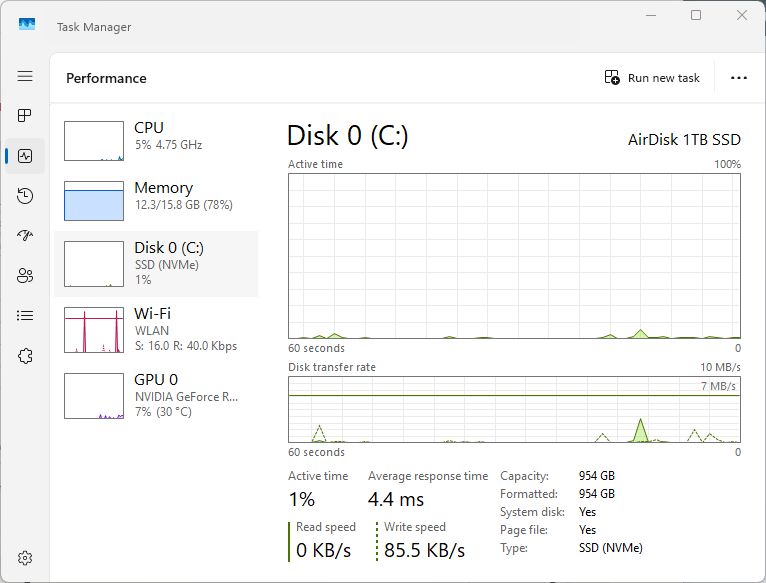
Press:
Ctrl + Shift + Esc
Open Processes and sort by Disk.
Look for sustained activity.
Common causes include:
- Windows Update
- antivirus scans
- cloud synchronization
- game downloads
- Windows Search indexing
- application updates
- low-memory paging
Check Available RAM
When Windows runs low on physical memory, it uses the page file heavily.
This can increase disk activity dramatically.
Check Task Manager → Performance → Memory.
Restart the PC
If Windows Update or another maintenance process has become stuck, a restart may resolve the problem.
Check Drive Health
Repeated freezes, slow reads, or storage errors may indicate a drive problem.
Back up important files before stressing a drive that may be failing. Do not ignore unusual noises from mechanical hard drives or repeated disk-related Event Viewer errors.
Check Free Space
Very low free space can interfere with updates, temporary files and some drive workloads.
Open:
Settings → System → Storage
Remove unnecessary files or move large data elsewhere.
Do Not Disable Random Windows Services
Many guides recommend permanently disabling services such as SysMain or Windows Search.
Sometimes disabling a service can help diagnose a specific issue, but it should not be treated as a universal performance tweak.
First identify what is actually generating the disk activity.
Example: 100% active time with little data moving
Illustrative readings: Task Manager shows 100% active time, a transfer rate of 2 MB/s, and the desktop pauses while opening files. These numbers are an example, not a benchmark or a measurement from Hanki.
A drive can be busy handling many small requests without reaching its advertised sequential transfer speed. These readings alone do not identify the cause or prove the drive is failing.
- In Task Manager → Performance, select the affected disk. Note its model, active time and response time while the slowdown is happening.
- Under Processes, sort by Disk. Note the process and whether it stays busy or only spikes briefly.
- Pause one optional workload you recognize, such as a game download or cloud sync, using that application's own pause control. Compare the same disk readings and responsiveness again.
- If that change makes no difference, resume the workload before investigating the next possible cause. Do not end unfamiliar system processes.
Choose a next step from the evidence
| Observation | Useful next step |
|---|---|
| Activity settles when a download is paused | Schedule or limit that application's downloads. A busy drive during a known task is not automatically a Windows fault. |
| Disk activity rises while memory is nearly full | Close optional memory-heavy apps and compare again. Review pagefile guidance before changing virtual memory. |
| Activity persists at idle with repeated storage errors | Back up important files, record the event times, and consult the drive manufacturer's diagnostic guidance. Avoid repeated stress tests on a suspect drive. |
| The system drive is almost full | Use the large-file guide to review personal files. Do not delete Windows folders to make space. |
For a repeatable comparison, record the workload and readings before and after one change. Hanki’s Performance Lab → Monitor can save each run to Performance sessions for comparison; it does not make these readings a hardware-failure diagnosis.
References
Questions about How to Fix 100% Disk Usage in Windows 11
Does 100% disk usage mean my SSD is transferring data at maximum speed?
No. Task Manager active time can reach 100% while throughput is low, especially with many small requests or high response times. Compare active time, response time and the busy process.
Should I permanently disable SysMain or Windows Search?
Not as a universal fix. Identify the workload causing the activity first; changing unrelated Windows services can hide the evidence without resolving the cause.
What should I check if disk usage stays high while idle?
Review memory pressure, free space and repeated storage events. Back up important files before additional testing if there are signs of drive instability.