 Hanki
START HERE
Scan my PC
One read-only scan across Windows, storage, devices, security, app crashes, network link speed and clock sync. Nothing changes until you approve a repair, nothing is uploaded, and each scan is saved so you can compare later.
Start with a Windows problem, a game that doesn’t feel right, or the app itself. Hanki helps you investigate before you decide what to change.
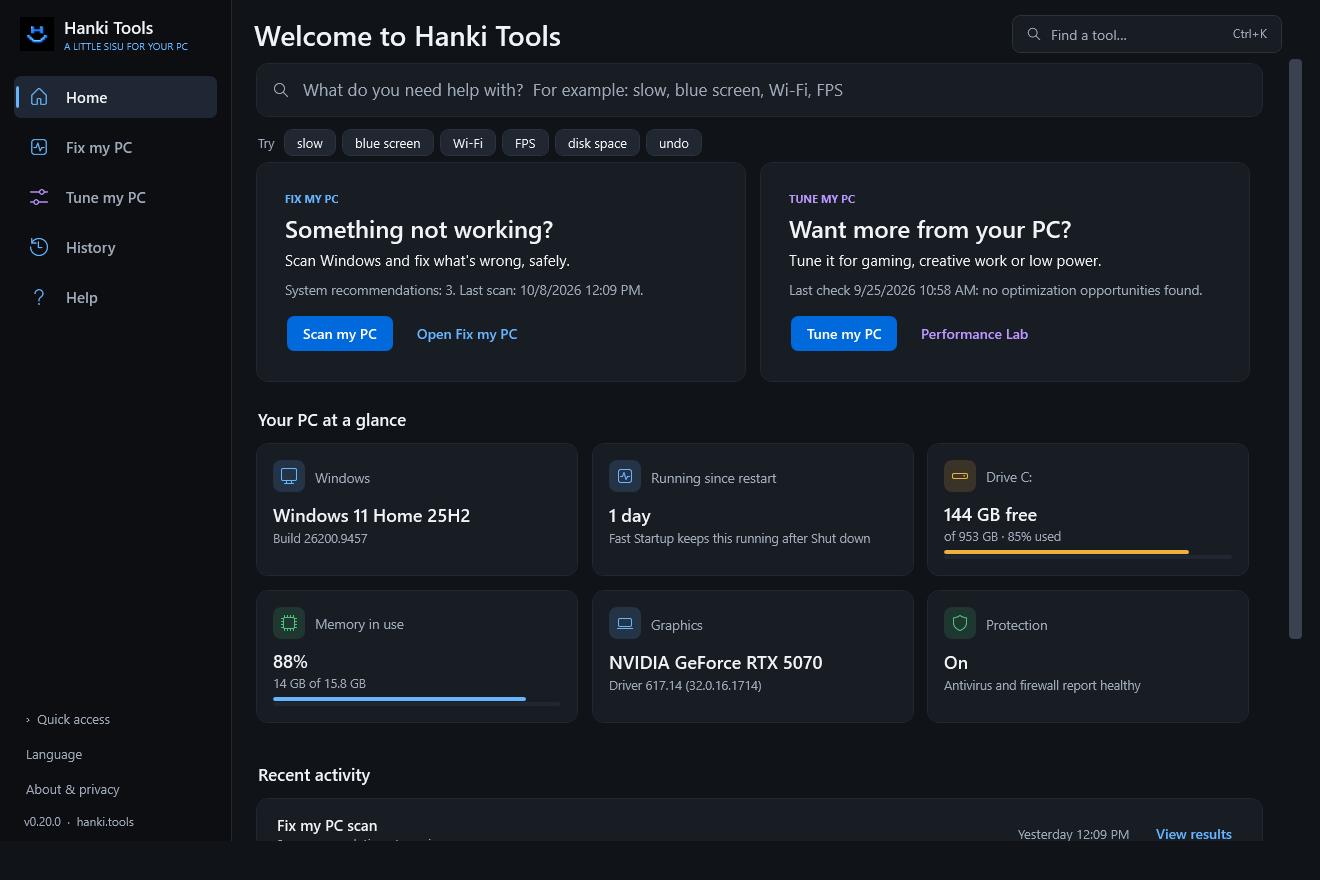
Something not working?
Scan Windows and fix what’s wrong, safely.
Want more from your PC?
Tune it for gaming, creative work or low power.
Search English quick checks and detailed guides by symptom. Results stay on this page until you choose one.
Search English help topics.
Browse all help topicsNo matching topics. Try fewer words or browse all help topics.
Two ways in. Fix my PC finds problems and fixes them safely. Tune my PC sets your PC up for what you do today, and changes only what you approve.
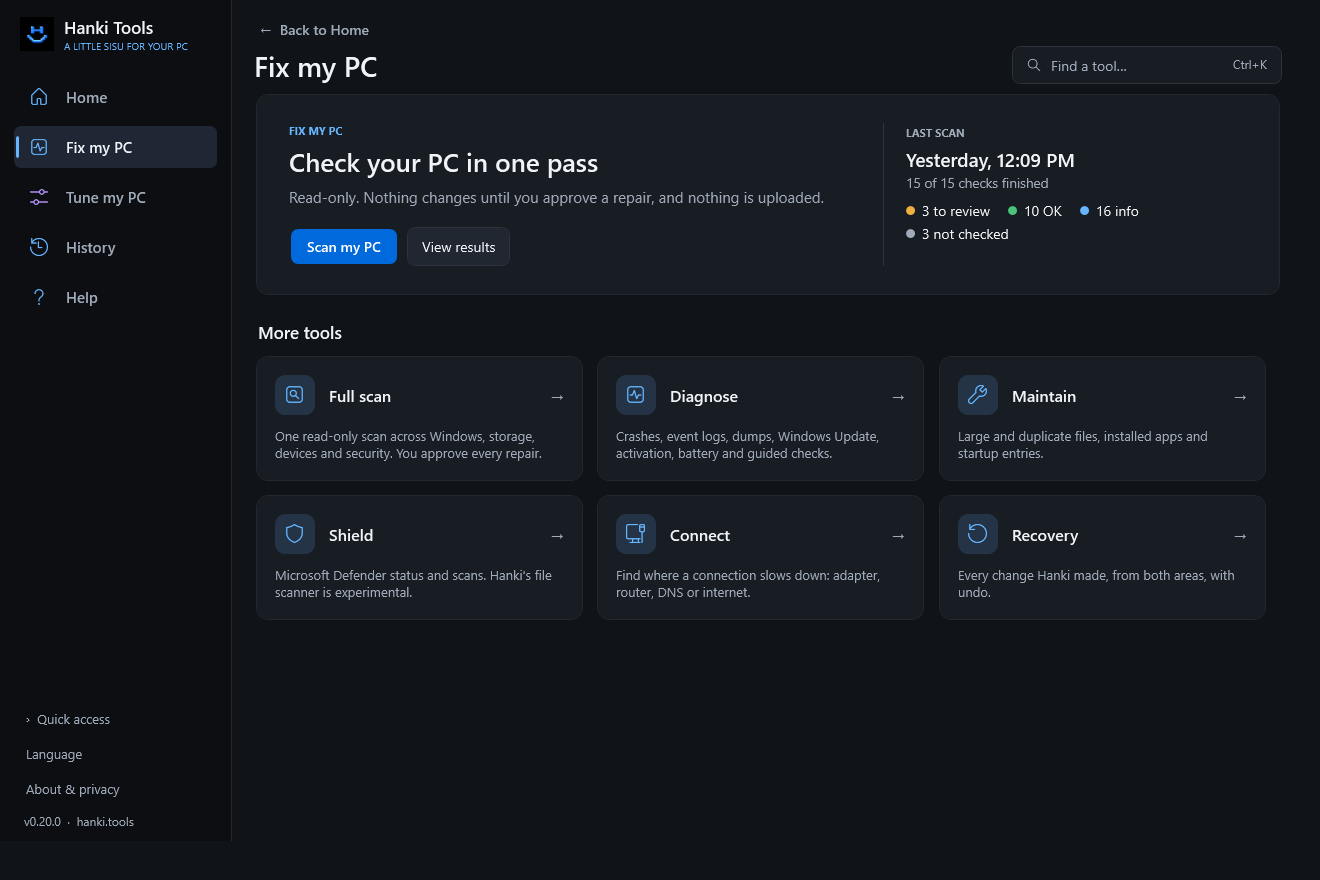
Something not working? Scan Windows, read what’s wrong in plain language, and approve each repair.
One read-only scan across Windows, storage, devices, security, app crashes, network link speed and clock sync. Nothing changes until you approve a repair, nothing is uploaded, and each scan is saved so you can compare later.
Each check ends with a clear status and a suggested next step. The technical details stay one click away.
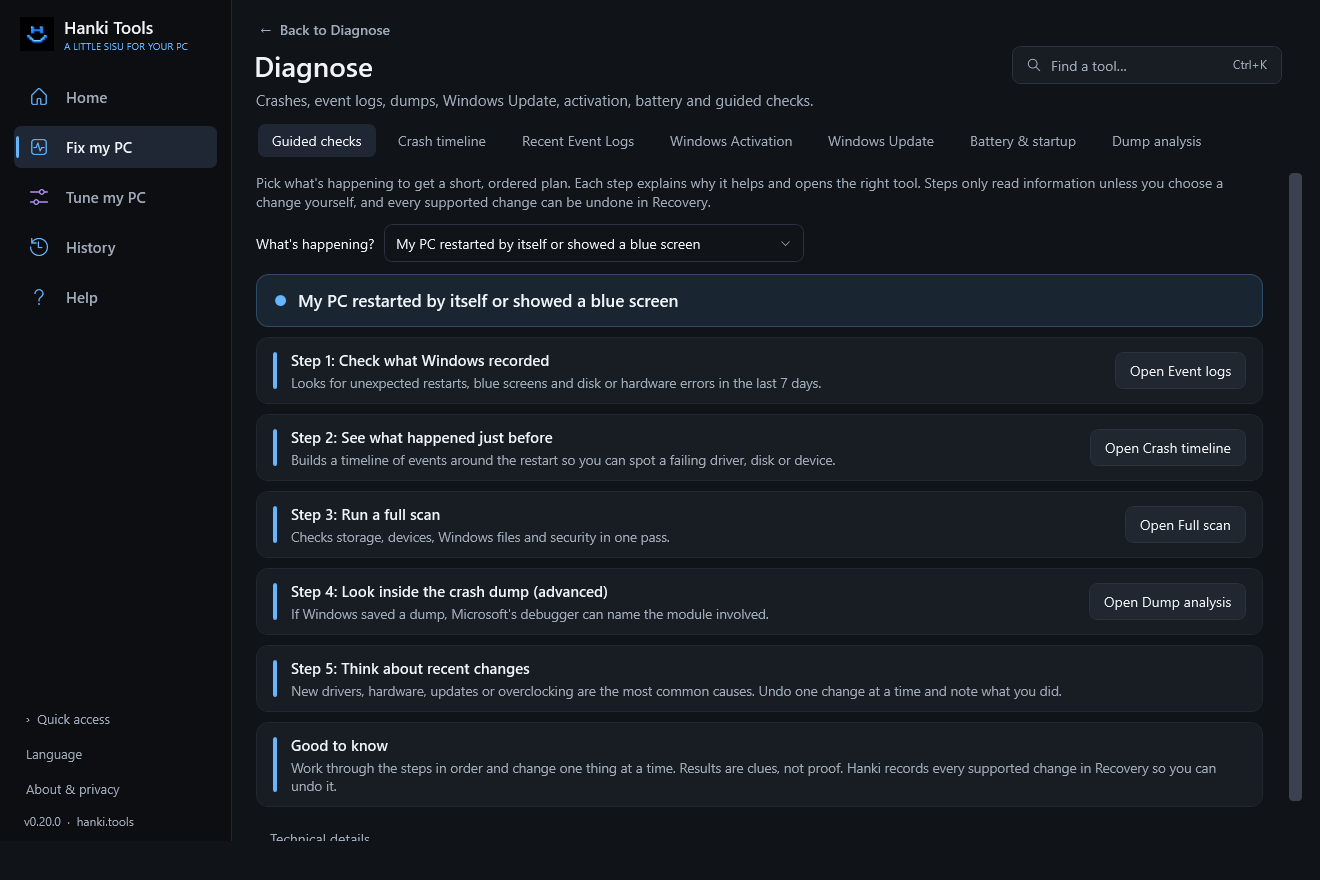
Type what’s happening on Home, even as “laggy” or “bsod”, and follow steps that open the right tool.
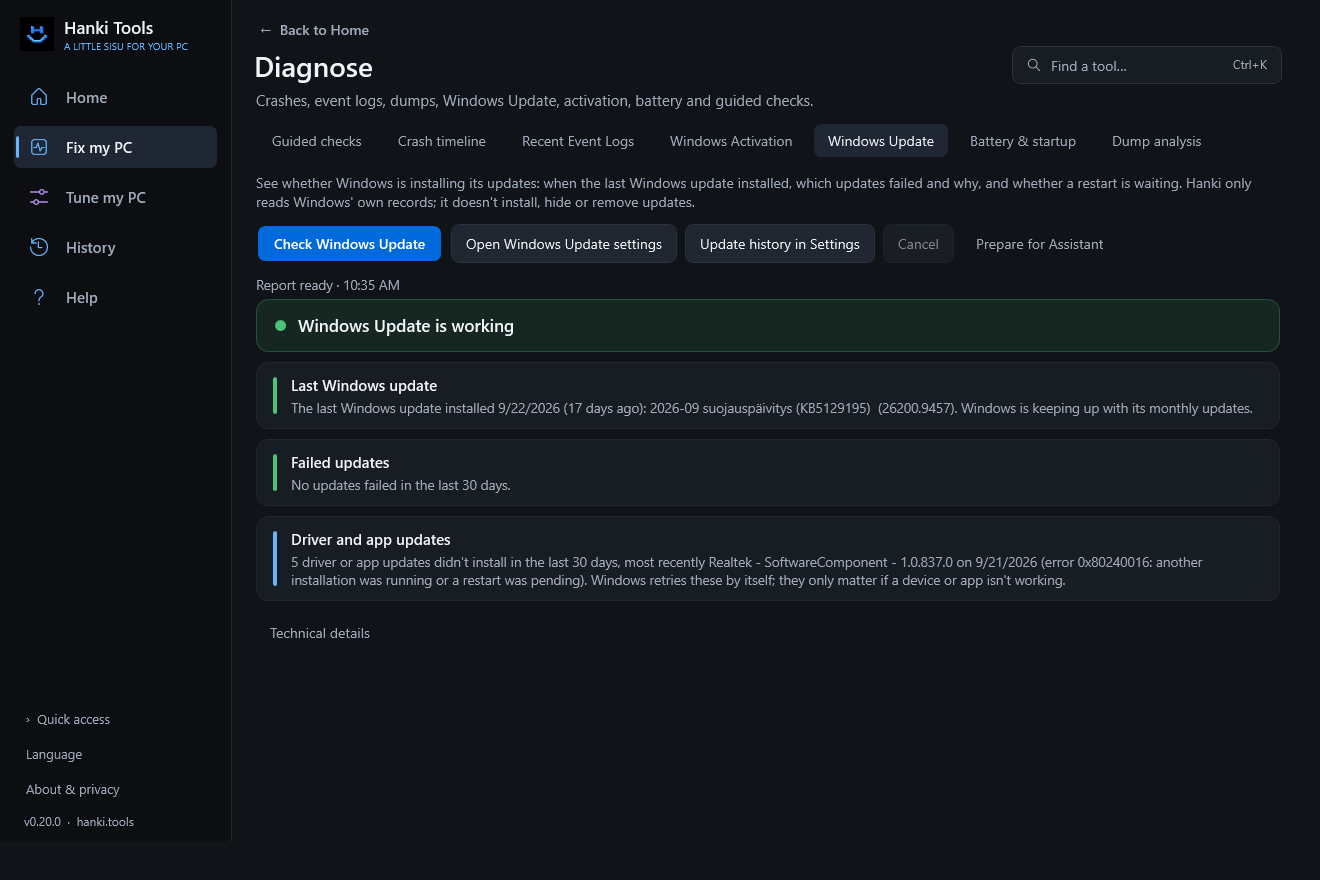
Turn scattered evidence into a clearer picture of a problem.
Find what takes up space, then clean up on your terms.
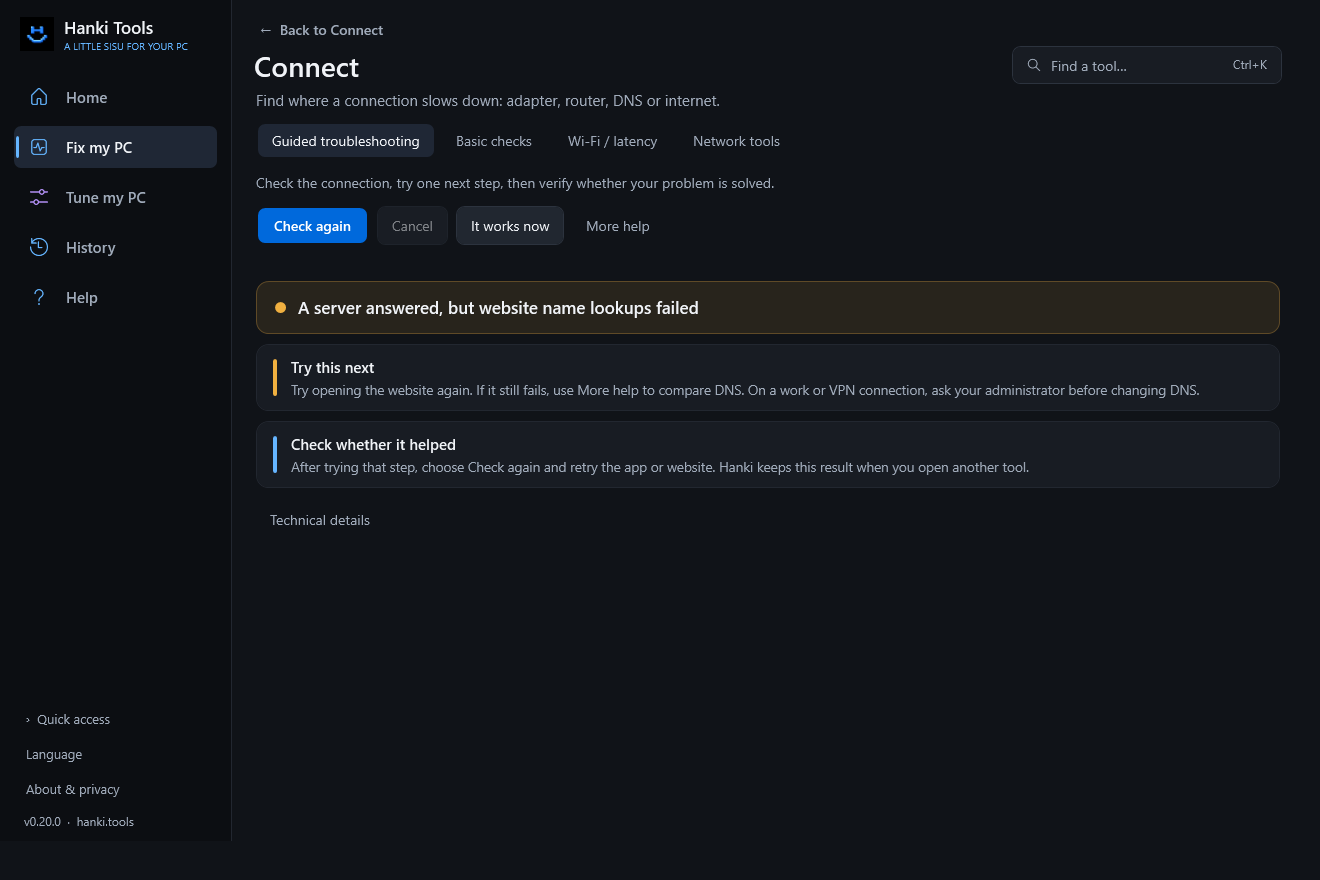
Find where a connection problem starts, one check at a time.
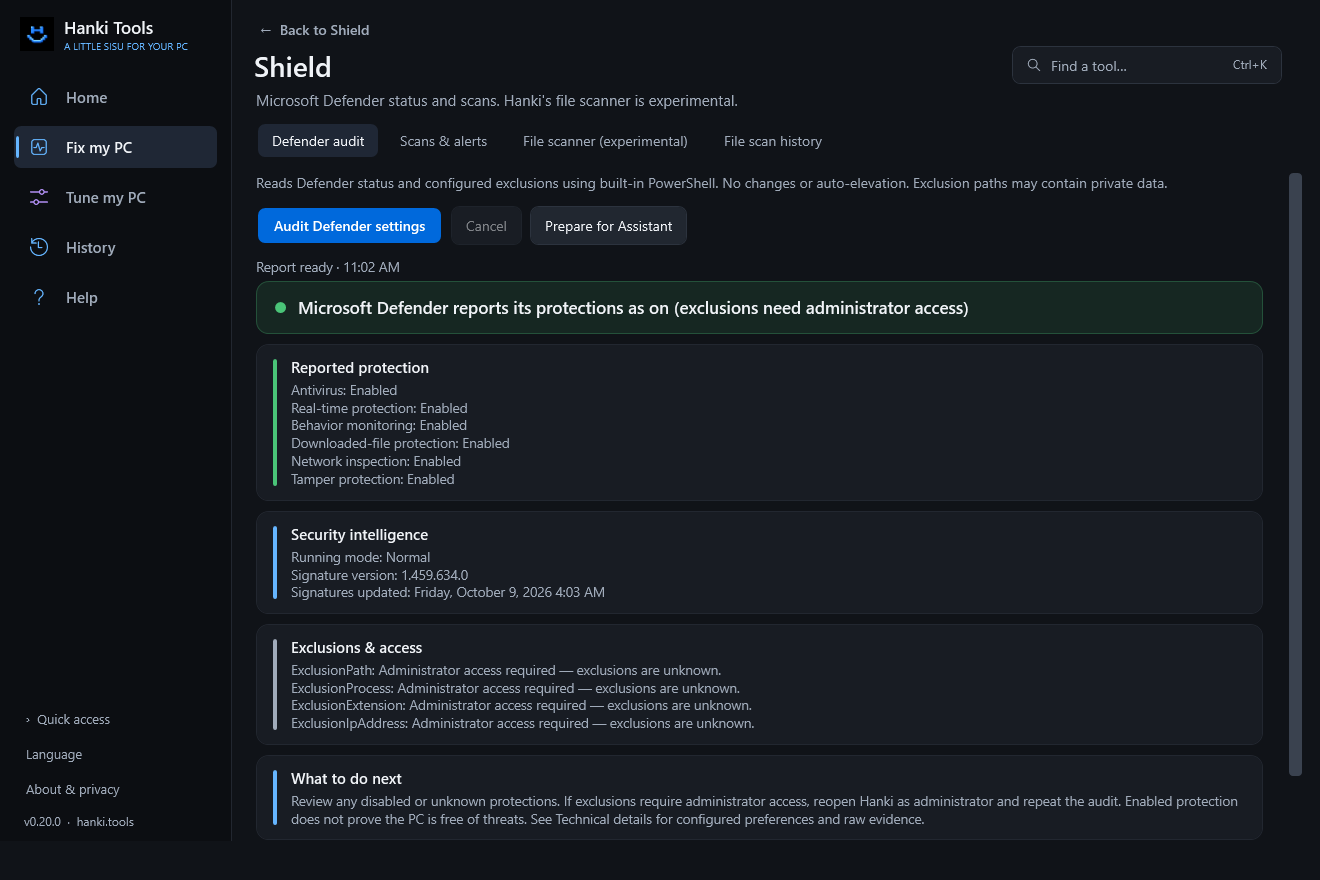
See what Microsoft Defender reports, explained.
Every change Hanki made, from fixing and tuning, with undo.
Scans, repairs, changes and tests, newest first.
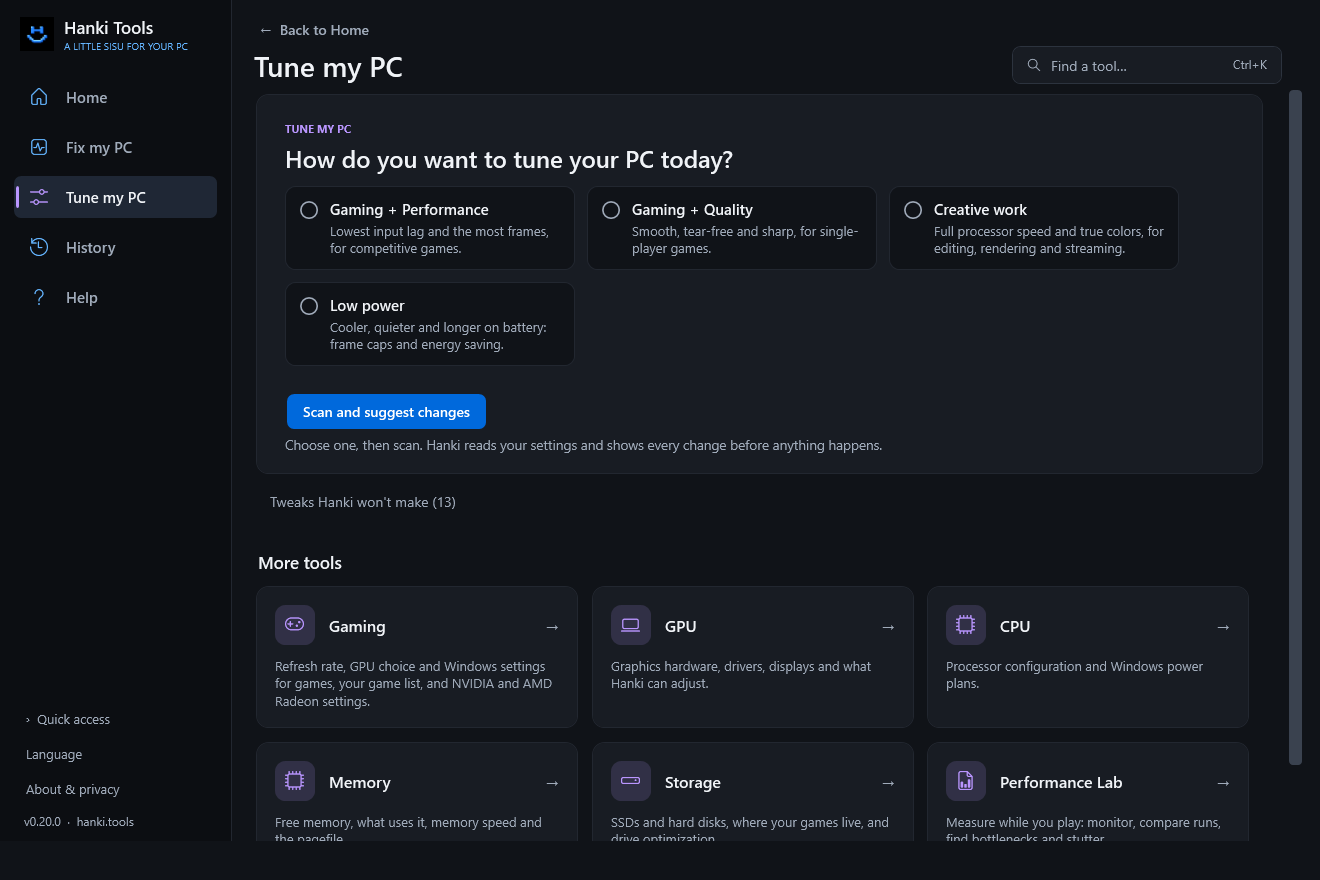
Want more from your PC? Say what you want today, review Hanki’s plan, and apply only what you approve.
Choose Gaming + Performance, Gaming + Quality, Creative work or Low power. Hanki reads your display, Windows, mouse, graphics driver, processor, memory and storage settings, then shows a plan.
You pick which changes to apply. Each is saved in Recovery first, and the steps only you can take are listed too.
Start a game from your list, play for two minutes, and compare with the last run and what changed in between.
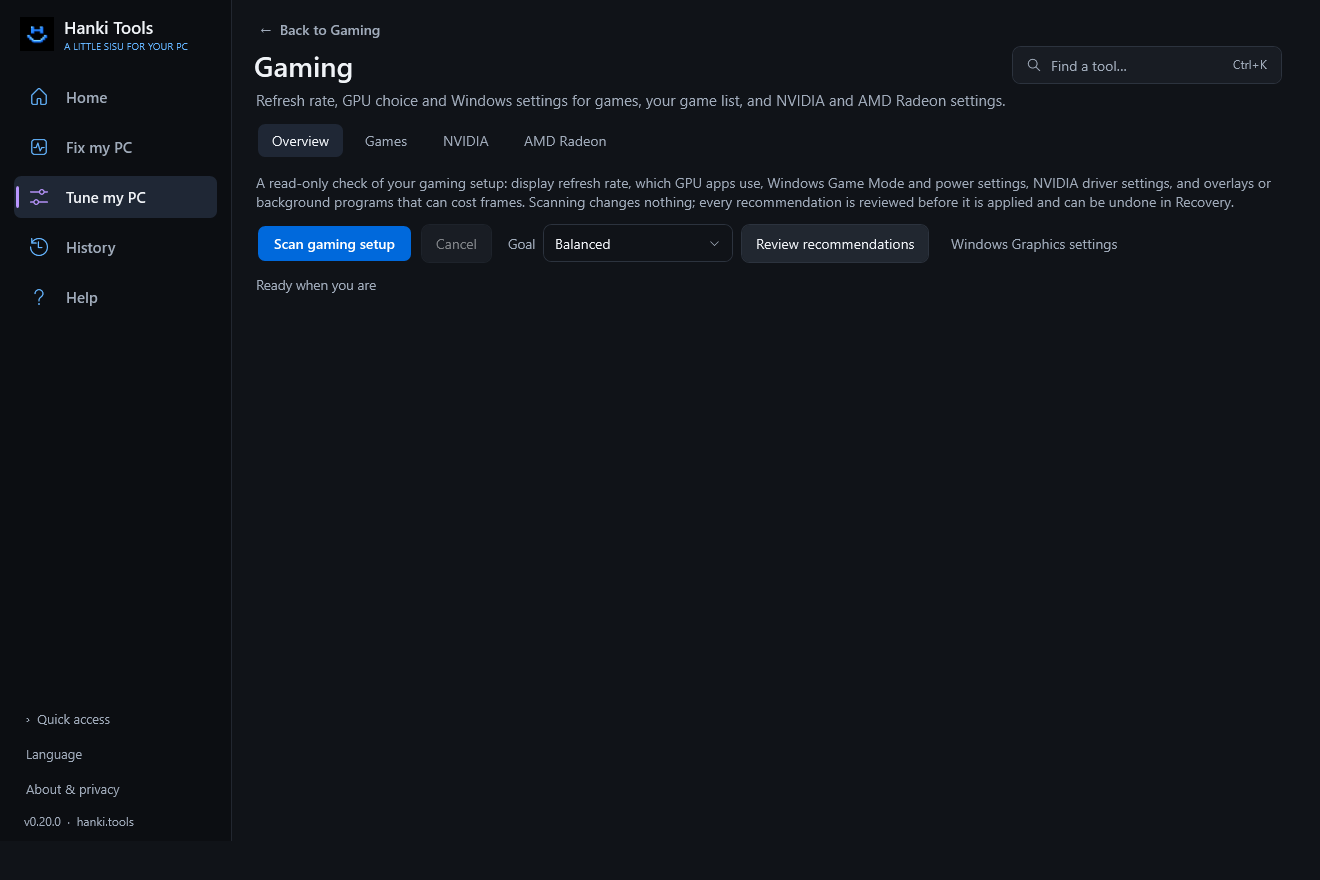
Windows and driver settings for smoother play.
See your graphics hardware and how your games use it.
See how your processor runs when it’s busy.
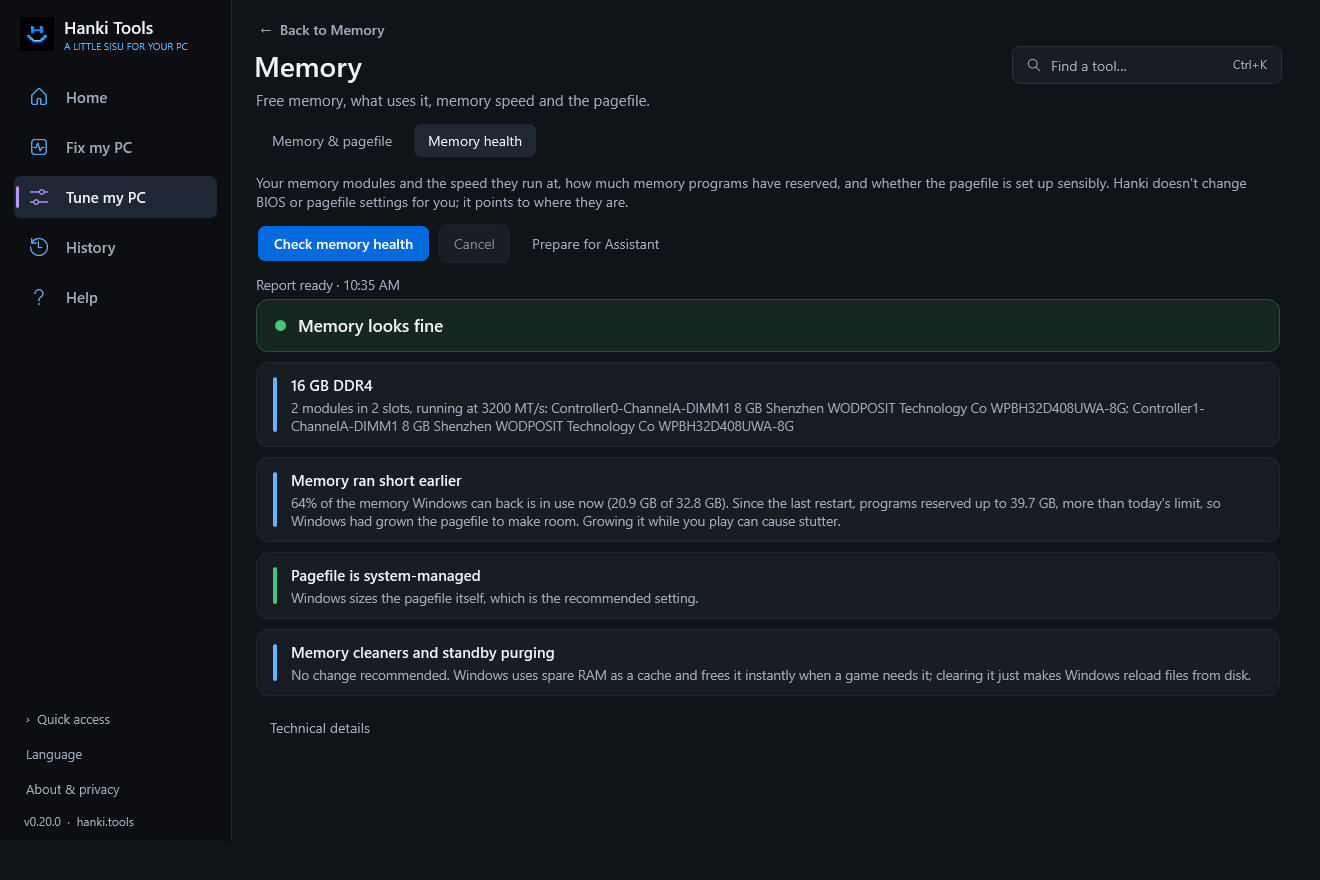
Know whether memory is holding your PC back.
Check the drives your games and apps load from.
Measure while you play.
Hanki won’t disable Defender, change timers or boot settings, switch off services in bulk or purge memory for a few frames. It explains why, and says so when no change is the right answer.
The optional Assistant helps prepare logs and reports. Review what you share before sending it to OpenAI with your own API key.
Hanki opens Windows' own Quick Assist, so a friend or your IT person can see your screen or lend a hand, after a clear scam warning. Hanki doesn't join or record the session.
Screenshots are from Hanki Tools 0.20.0. Each result comes with a clear status and a next step; the technical details stay one click away.
 SMALL TOOLKIT. FINNISH SPIRIT.
Useful tools should help you understand what is happening—and what happens next.
Sisu is Finnish for grit: the quiet determination to keep going.
Start with read-only diagnostics. Review supported actions before you run them.
No guaranteed speed gains or one-click miracle fixes. Hanki’s experimental scanner is not a replacement for antivirus protection.
The source is available on GitHub under the PolyForm Noncommercial license. Read the code, follow changes or report an issue.
Browse all 28 practical guides for crashes, slow PCs, storage, Wi-Fi and more.
Browse Windows guidesSee what Hanki can help you investigate or change, how to get started, and where each tool's limits are.
Start with a read-only scan, follow guided checks and inspect crash evidence before changing settings.
Explore diagnosticsReview supported startup entries and folders, make a deliberate change and find the right undo route.
Explore startup managementFind large files, compare duplicate contents and review personal files before sending them to the Recycle Bin.
Explore storage cleanupFor planned Pro and Technician extras, see editions and availability.
Hanki Community is a Windows 11 toolkit, free for noncommercial use, for reading diagnostic evidence, investigating crashes or slowdowns, reviewing startup and storage, and choosing supported repairs or tuning changes.
Yes. Hanki Community is free for noncommercial use, including its current diagnostic and manual tools. Hanki Pro and Technician are planned paid editions for additional automation and convenience; they are not on sale yet. Existing Community features stay free.
The diagnostic checks do not apply repairs or tuning changes. Hanki can save scan history locally. Supported repairs and tuning actions show what will change and require your approval.
The current download targets 64-bit Windows 11. Check the latest release notes for the precise build requirements and any platform changes.
Hanki organizes evidence for unexpected restarts, freezes, slow performance, startup items, storage, network connections, and Microsoft Defender status. A finding is a lead to investigate, not a guaranteed diagnosis.
Tune my PC reviews relevant settings and prepares profiles for gaming, creative work, or lower power use. Review the proposed steps before applying them. Recovery records supported changes; not every Windows action can be undone.
The Hanki Community is free for noncommercial use.
Download it, explore the source, or tell us what you think.
Last known · Windows 11 · x64 · code-signed
Last known release: 0.20.0 · published October 9, 2026
Release details update from GitHub. Until then, verify the last-known version and matching asset before installing.
Check the current release notes for build checks, requirements and any Windows testing still pending.
Release notes and downloads · Portable ZIP SHA-256 · Installer SHA-256
HankiTools.exe and the setup program are code-signed (Iikka Amos Isosaari). Windows SmartScreen may still warn until the publisher has built reputation; see what to expect. Check the current release’s signature status and verify its SHA-256 checksum before running the download.
Testing the newest changes? Preview build release notes and downloads — unsigned and not yet stable; the release above is recommended for most people.
Prefer the command line? Install with Scoop, which checks the checksum for you:
scoop bucket add hanki https://github.com/hankitools/scoop-bucket
scoop install hanki/hanki-tools%LOCALAPPDATA%\Programs (no administrator approval) or for all users under Program Files (administrator approval required). The portable ZIP needs neither.%LOCALAPPDATA%\IgezziGuard. Uninstalling or deleting the app removes only the application files, not that folder; remove it yourself for a full clean-up.Windows releases are intended to be signed through the SignPath Foundation program; the application is pending. Current releases are not code-signed yet.
Team roles: committers, reviewers and approvers — @hankitools. Only builds made by GitHub Actions from the public repository are submitted for signing, and an approver reviews every signing request.
Privacy: this program will not transfer any information to other networked systems unless specifically requested by the user or the person installing or operating it. See the privacy policy and the full code signing policy.