 Hanki
Windows diagnostics, with a clearer next step.
A restart, a freeze or a slow desktop can have several causes. Hanki Tools brings read-only checks, a crash timeline and event logs into one Windows 11 toolkit, so you can investigate before changing settings.
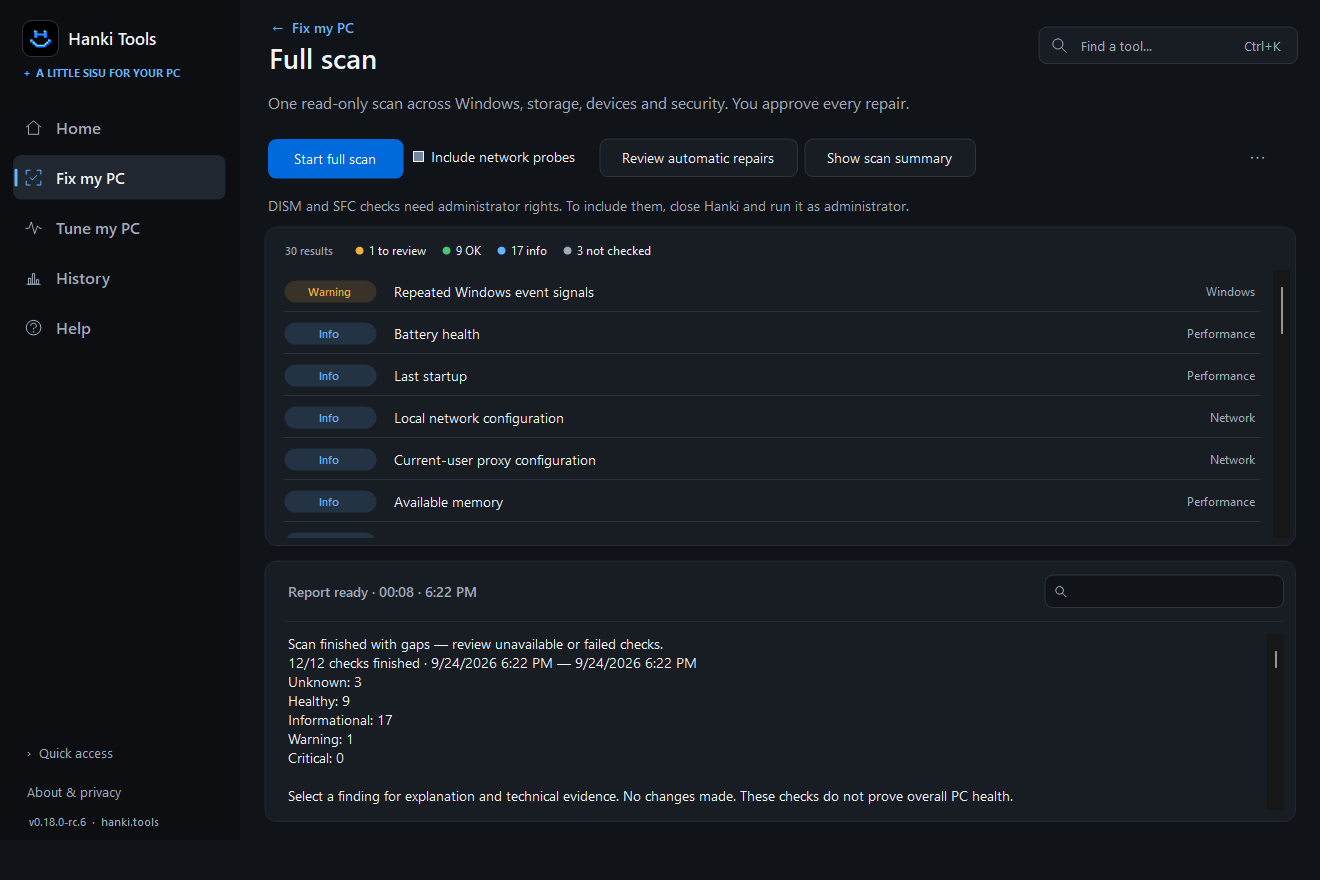
Start with a read-only scan
Choose Scan my PC on Home for checks across Windows, storage, devices and security. The scan does not apply fixes or upload its findings. Results are saved to History so you can return to them later.
Use the result status and suggested next step to choose what to investigate. A passing check is evidence about that check, not a guarantee that the entire PC is healthy.
How to investigate a Windows 11 problem in five steps
- Record the symptom. Note whether you saw a blue screen, sudden restart, freeze, slow startup or connection problem. Write down the approximate time and what you were doing.
- Run read-only diagnostics. Choose Scan my PC on Home. Review the categories and the actual checks performed; Hanki does not apply a repair or tuning change during this scan. It may save local scan history.
- Compare Windows events. Check the crash timeline and Event Logs around the observed time. A Kernel-Power 41 event documents an unexpected shutdown, not its cause; investigate accompanying messages and patterns.
- Investigate a specific lead. Where relevant, open local dump triage or the matching Windows Update, activation, storage or device check. An absent dump, missing permissions or a suspected driver limits what you can conclude.
- Choose and verify the next action. Open the matching step-by-step guide or native Windows tool, review a proposed change before approving it, record what you changed and test the original symptom again. Recovery is available for supported changes, not every Windows operation.
What Hanki can tell you—and where evidence stops
Hanki helps organize information that is otherwise spread across Windows tools. It does not guarantee a diagnosis or automatically repair every crash. A crash marker or a debugger's suspected driver does not establish the root cause; missing permissions or unavailable system counters can also limit a result.
You can still use Windows Event Viewer and Task Manager directly. The guides below start with those built-in tools and explain when Hanki can add context.
Where Windows diagnostic evidence comes from
Windows records different parts of a failure in different places. Event Viewer holds System and Application events; Windows may save a minidump under C:\Windows\Minidump after a blue screen; WHEA-Logger reports hardware error events. A dump may be absent if the machine lost power or could not write it. Hanki helps you review supported evidence together, but missing logs or dump files limit what can be concluded.
Start with the symptom and its approximate time. Note the exact event ID, source and message, then check whether related events recur. A Kernel-Power 41 event confirms that Windows noticed an unexpected shutdown; by itself, it does not identify a faulty power supply, driver or other root cause. If a debugger suggests a driver, treat it as a lead to verify against the surrounding events and reproduction steps.
Read findings and choose the next check
- Unexpected restarts and freezes: compare event timestamps with what you were doing, and check whether a matching dump exists. Follow the restart guide or the freeze guide before making changes.
- Hardware error reports: review the precise WHEA event type, affected component, and whether it repeats. Correlation is not a component diagnosis. Use the WHEA guide to decide what to test next.
- Slow startup and background load: compare the startup list and resource usage with Task Manager. Disable only an entry you recognize and do not need; see startup management.
- Storage pressure: inspect large files and duplicates before deleting personal data. A full drive is not the same thing as a failing drive. Follow the storage cleanup walkthrough.
- Network and security: review adapter, DNS and connection checks or Defender-reported status. A green result describes the particular check, not a guarantee that every issue is absent.
Use a timeline without mistaking correlation for proof
Compare repeated crashes with driver changes, updates, workload and the times you observed the problem. A crash after a driver update makes that change worth investigating, but it does not prove the driver caused the crash. Crashes under load may suggest temperature, power, driver or hardware questions; verify with the appropriate Windows or vendor tools instead of changing several settings at once.
Keep the original event message and any dump before running repairs. Hanki diagnostic checks do not apply repairs or tuning changes, though scan history may be saved locally. For an actionable finding, inspect the proposed change and its supported recovery route; some Windows operations cannot be rolled back automatically.
When Windows tools are the better next step
Use Event Viewer for raw or older event history, Task Manager for a live process or startup entry, Device Manager for a specific device, and Windows Memory Diagnostic for a dedicated memory check. Hanki is useful when you need a symptom-led view of multiple checks, but it does not replace those deeper tools or a hardware assessment.
Choose a troubleshooting path
- Unexpected Windows restarts: build a timeline before changing drivers or settings.
- Random freezes in Windows 11: separate a stalled application from a system-wide freeze.
- WHEA-Logger errors: understand the reported hardware error before assuming a component has failed.
Windows diagnostics: common questions
How does Hanki's read-only scan work?
It reads supported Windows diagnostic evidence and organizes findings without applying repairs or tuning changes. Scan history may be saved locally so you can review the result later.
Can Hanki always identify the cause of a Windows crash?
No. Event logs and crash dumps can be absent or ambiguous. Hanki helps connect evidence and suggests next checks; a suspected driver or a Kernel-Power event is not proof of a root cause.
What problems can I investigate?
Use the supported tools for unexpected restarts, freezes, slow performance, startup entries, storage pressure, network issues and Microsoft Defender status. Individual checks have coverage and permission limits.
Is the current Hanki download code-signed?
Current published releases are not code-signed. Review the official GitHub release and compare its published SHA-256 checksum before running a package.
How is Hanki different from Event Viewer?
Event Viewer shows raw Windows events. Hanki presents supported evidence by symptom with guided next checks while keeping Windows tools useful for deeper investigation.