 Hanki
Connect and network checks
Find where a connection problem starts with Hanki Connect: guided troubleshooting, basic checks, Wi-Fi and latency, DNS comparison and speed test.
Connect finds where a connection slows down or stops: the adapter, the router, DNS or the internet. Every network test runs only when you start it.
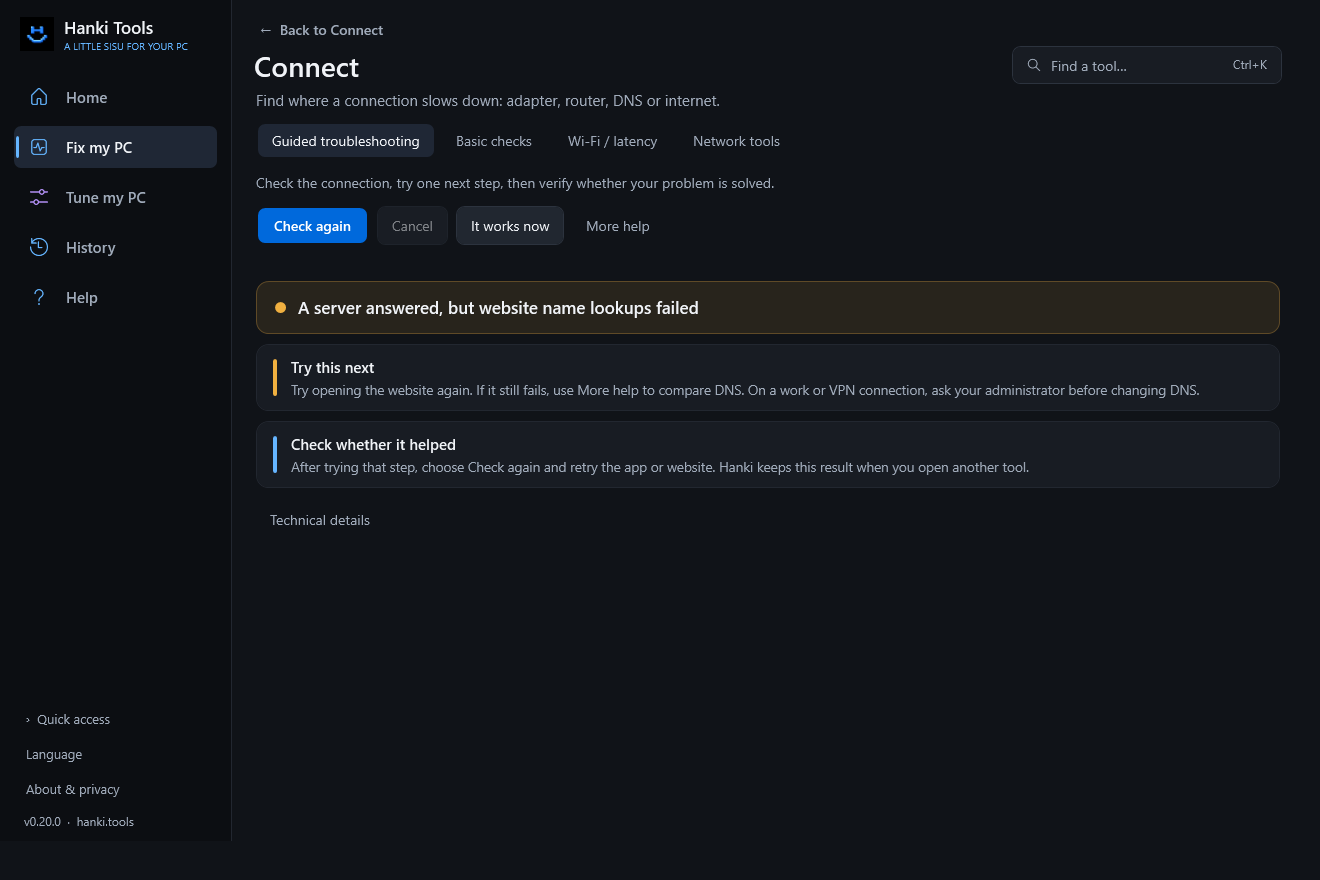
Guided troubleshooting
Connect opens with a read-only guided check. It shows which destinations it will contact before you start, collects facts and suggests one next step. Test again, open more help, or confirm the problem is solved; passing probes alone never mark it solved. If you open a detailed tool, Back returns you to the same step.
Tools
| Tab | What it does |
|---|---|
| Basic checks | One check from the network adapter to the router, DNS and the internet, with a single verdict. |
| Wi-Fi / latency | Wi-Fi signal, ICMP latency and traceroute to your gateway, a public target or a host you choose. |
| Advanced / DNS repair | Compare DNS, Trace route, Speed test (35 MiB max), and reversible IPv4 DNS changes. |
What each test contacts
- Basic checks: DNS requests for www.microsoft.com, cloudflare.com and example.com, and a TCP probe to 1.1.1.1:443 and to the first name that resolves.
- DNS comparison: your configured resolvers, Cloudflare 1.1.1.1 and Google 8.8.8.8.
- Speed test: speed.cloudflare.com, up to 25 MiB down and 10 MiB up plus overhead. Metered connections may be charged.
Reports can contain your network name, IP and MAC addresses; check them before sharing.
Change DNS, and change it back
Use Cloudflare IPv4 DNS changes the IPv4 DNS server of an adapter after you review it, and records the change in Recovery. Restore automatic IPv4 DNS goes back to your network's DNS. A system DNS change affects every app, not only Hanki.
Related
Updated · Found something out of date? Report it on GitHub.