 Hanki
Fix my PC and the full scan
What the Hanki full scan checks, how to read Good, Review and Problem results, optional network probes, and how repairs are reviewed.
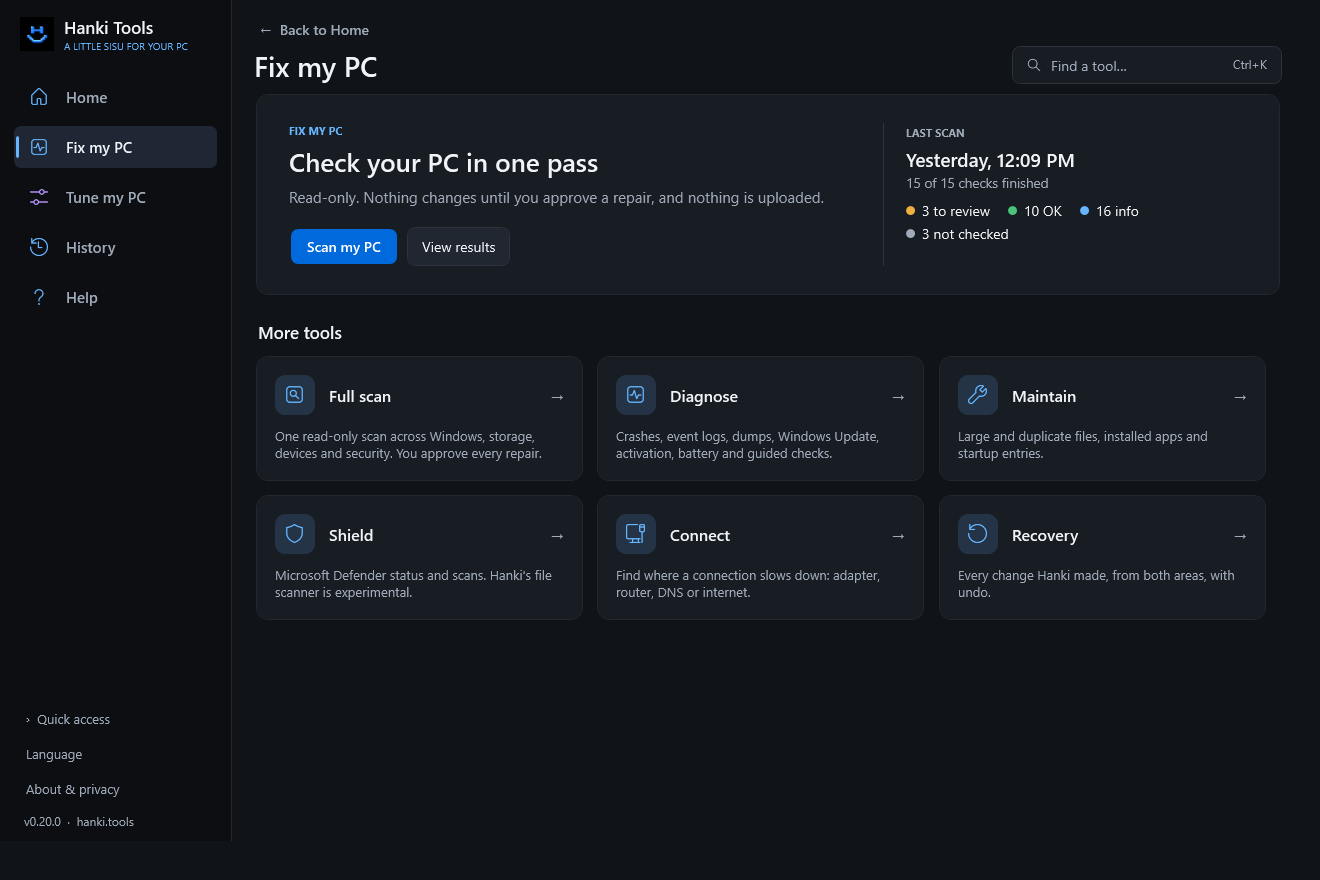
Fix my PC is for when something isn't working. It starts with one read-only scan, then points each finding to a next step or the tool that shows more.
How it works
- Scan. One read-only pass. Nothing changes and nothing is uploaded.
- Review findings. Findings that need attention first, each with a plain-language explanation.
- Choose what to do. Follow the manual next step, open the related tool, or approve a supported repair after reviewing it.
What the scan checks
- Protected system files and the Windows component store (verification only; the component-store check can take several minutes)
- Storage capacity and health
- Devices and drivers
- Repeated event signals in Windows' logs, and apps that crashed or stopped responding in the last 14 days
- Windows Security status
- Memory and startup
- Windows Update history, Windows activation, and battery and startup records
- Local network and proxy settings, network adapter link speed and clock sync
- Significant gaming configuration problems, which point to Gaming without being changed
These checks read Windows' own local records and do not contact the network.
Optional network probes
Tick Include network probes before scanning to add an internet check: ICMP to your default gateway, DNS requests for www.microsoft.com, cloudflare.com and example.com, and a TCP connection to port 443 of the first name that resolves. Those destinations and resolvers can see your IP address. Without probes, DNS is not checked and the result says so.
Read the results
| Status | Meaning |
|---|---|
| Good | This check found nothing to act on. It is evidence about this check, not proof the whole PC is healthy. |
| Review | Worth a look. Read the explanation and decide whether it matters for your symptom. |
| Problem | A finding that likely needs action. Follow the next step. |
Other completed checks and checks with missing evidence are listed separately. If a scan is cancelled, Home and History say how far it got instead of "nothing needs attention".
Repairs
Every finding has manual guidance. Review repairs appears only after a recent scan with a supported proposal, administrator access and an eligible edition. A review names what will change, where supported changes are saved and how to undo them, and which Windows repairs have no per-file Hanki undo. Starting a new scan clears proposals from the previous one.
Automatic SFC, DISM and DNS-cache repairs are part of the planned Pro edition, which is not on sale yet. Community builds show manual guidance for these.
Scan history
Each scan is saved on this PC in History → System actions → Saved scans, so you can compare later. Saved history omits raw evidence; see Your data.
Related
- Windows diagnostics overview and step-by-step Windows guides
- Diagnose for crashes, event logs and dumps
Updated · Found something out of date? Report it on GitHub.