 Hanki
Gaming
Hanki's read-only gaming check, your game list, Launch and measure, NVIDIA and AMD Radeon settings with presets, and Tactical Vision.
Gaming covers the Windows and driver settings that affect games, and the games on your PC. It has four tabs: Overview, Games, NVIDIA and AMD Radeon.
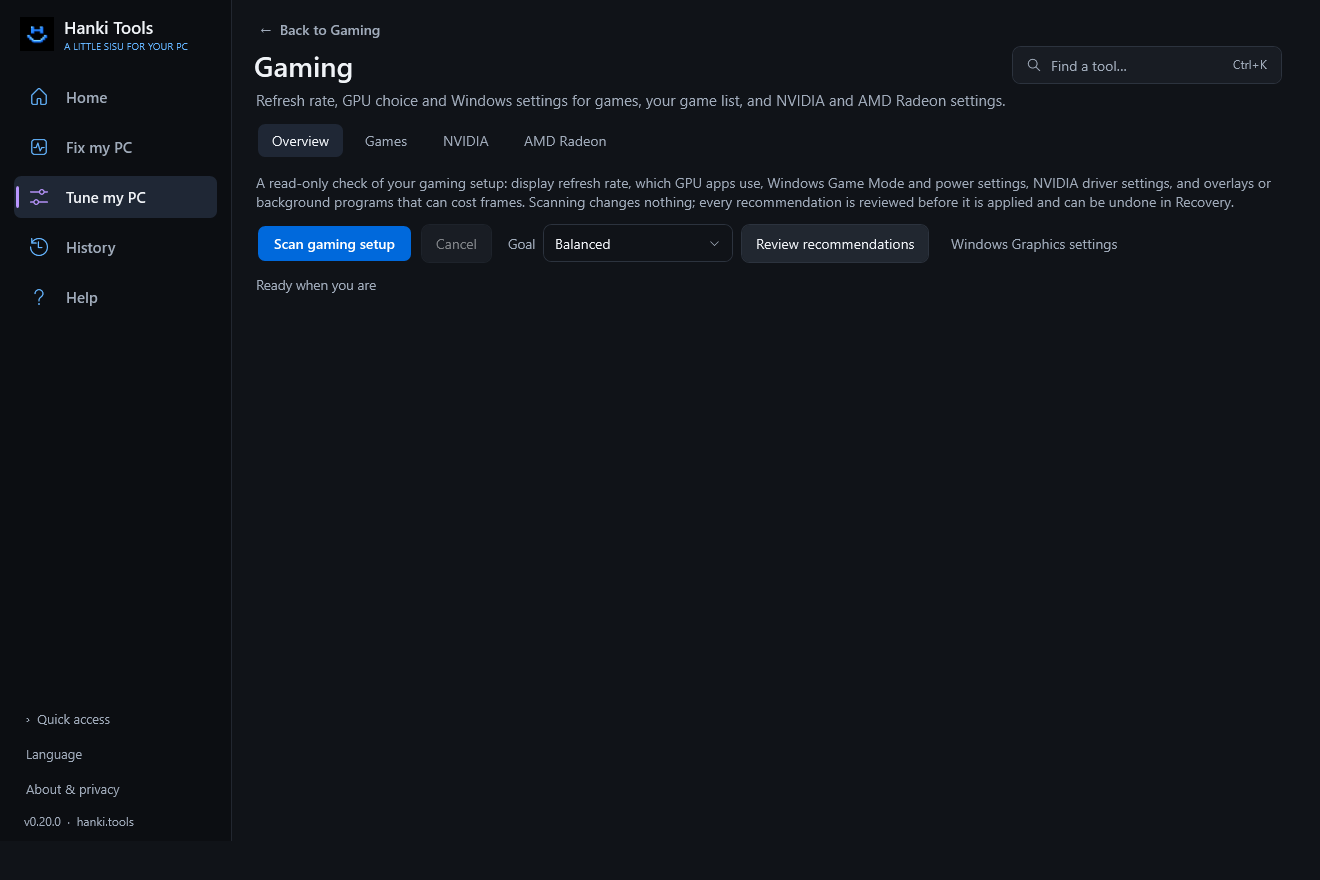
The gaming check
A read-only check with a clear verdict for each item: refresh rate, which GPU games use, Game Mode, power, PCIe lanes, Resizable BAR, Game Bar background recording, optimizations for windowed games, variable refresh rate and mouse acceleration. A one-second sample of running programs points out overlays, recorders and busy background apps. Nothing is closed.
Your games
Games lists games found in Steam, Epic, GOG and other launchers' local records. Add a game's .exe yourself if it's missing. For each game you can:
- Optimize this game: analysis and a reviewed proposal for that game's own driver profile.
- Launch and measure: Hanki starts the game, waits for its window, lets it load for 20 seconds, measures two minutes of play and compares with the previous run and the changes made in between. Frame rates need administrator rights.
- Tactical Vision: see below.
NVIDIA
Hanki reads NVIDIA's global and per-game driver profiles. Per-game changes go into the game's own profile, or a new "Hanki: game.exe" profile when NVIDIA has none. The NVIDIA tab edits global settings, with built-in presets and your own saved presets. Every change is reviewed, recorded in Recovery and can be restored.
AMD Radeon
With AMD Software installed, Hanki reads and changes Radeon Anti-Lag, Chill, Boost, Image Sharpening, Enhanced Sync, Wait for Vertical Refresh, Frame Rate Target Control and Anisotropic Filtering for the first discrete Radeon. Changes are reviewed, recorded in Recovery and verified. Radeon support has not yet been tested on AMD hardware.
Tactical Vision
Tactical Vision boosts NVIDIA Digital Vibrance (color saturation) only while a chosen game is in front. In Games, select the game, choose Tactical Vision…, enable it and pick 51–100% (default 70%).
- Keep Hanki open. Colors return to your previous setting shortly after you switch away, close the game or exit Hanki.
- It affects the whole display the game is on, needs an SDR display connected directly to NVIDIA, and doesn't work with HDR.
- It is a color adjustment with no FPS gain, and injects nothing into the game.
- If a session is interrupted, reopen Hanki with the same display connected to restore colors. The manual fallback is NVIDIA Control Panel → Adjust desktop color settings → Digital Vibrance.
Related
Updated · Found something out of date? Report it on GitHub.