 Hanki
Using the app
Find your way around Hanki Tools: Home, the five sidebar areas, Find a tool (Ctrl+K), Back, Quick access, Cancel tasks and administrator approval.
Home
Home leads with the two ways in: Fix my PC (something not working?) and Tune my PC (want more from your PC?). Below them, Your PC at a glance shows the Windows version, uptime, system drive space, memory, graphics adapter and the antivirus and firewall status Windows Security Center reports. Nothing from it is saved.
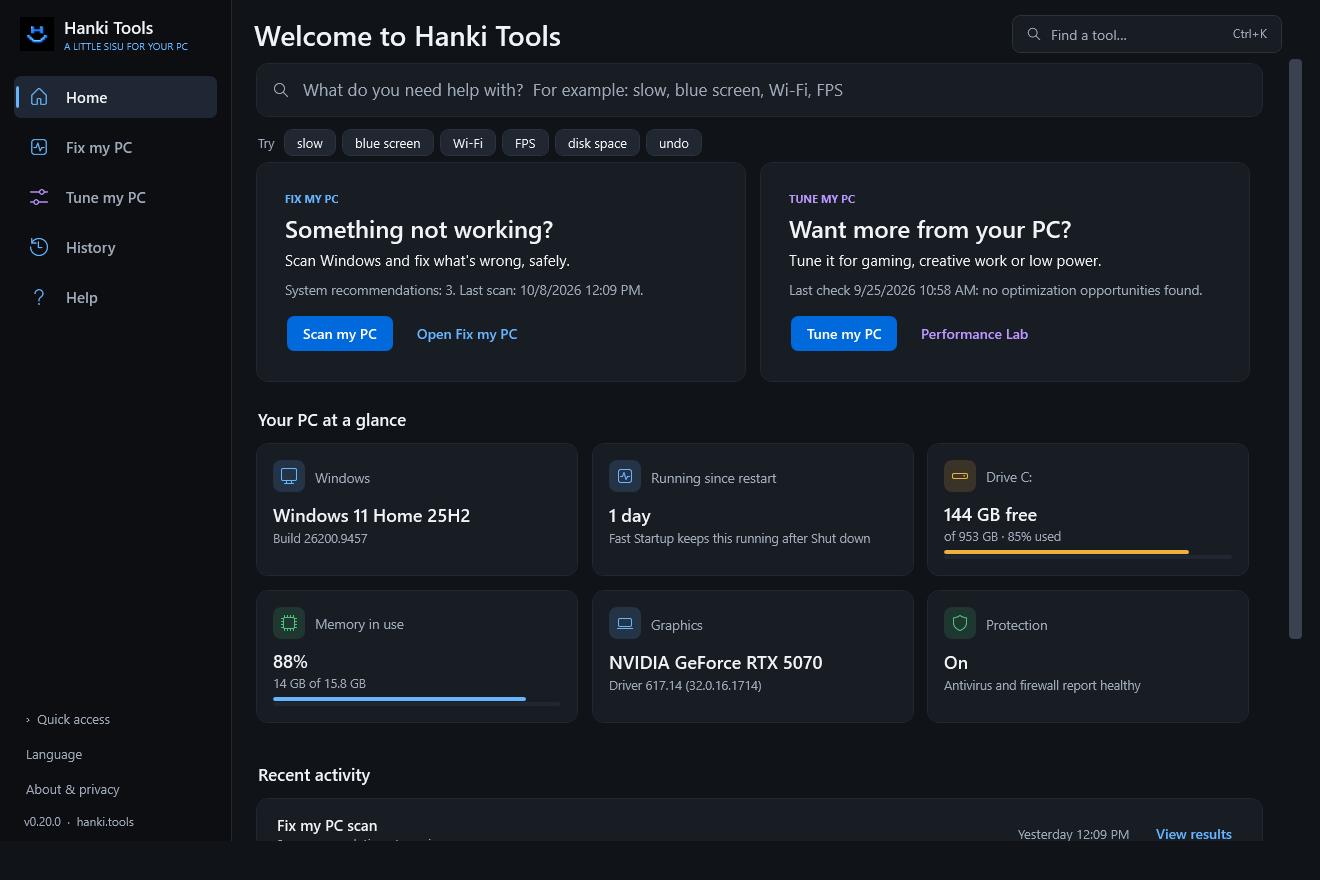
The sidebar
The sidebar has five areas. Each opens a landing page that leads with its main action and opens the area's other tools as tiles. The current area stays selected on those tools, so you always know where you are.
| Area | Tools |
|---|---|
| Home | Fix my PC and Tune my PC cards, Your PC at a glance |
| Fix my PC | Full scan, Diagnose, Maintain, Shield, Connect, Recovery |
| Tune my PC | Gaming, GPU, CPU, Memory, Storage, Performance Lab |
| History | System actions, Performance sessions |
| Help | Help & community, Assistant, remote help, Hanki Pro |
At the bottom of the sidebar: Quick access (a popup of six shortcuts, with a note about Windows administrator prompts), Language and About & privacy, which shows the version and where your local data is kept.
Find a tool
Press Ctrl+K or use Find a tool in the header. Search in your own words, such as "laggy", "bsod" or "fps". English search terms keep working when the interface is in another language.
Back and guided checks
Back or Alt+Left returns to where you were, including the tab inside a tool, and keeps your troubleshooting state. Guided checks start from a symptom, such as "My PC is slow", and each step opens the right tool.
Buttons and colors
Blue buttons start a tool's main workflow; quieter links offer supporting actions. Fix my PC uses Hanki blue and Tune my PC uses purple, so you can tell the areas apart at a glance. Defender and memory snapshots show summary cards first; the technical details keep the full report.
Cancel tasks
Cancel tasks stops Hanki's active collection and local monitoring. It does not roll back changes that already finished, and it does not stop a scan that Microsoft Defender runs on its own; use Shield's Defender cancel action or Windows Security for that.
Administrator approval
Run Hanki as a standard user. It never elevates the whole app. When an action needs administrator rights, such as some repairs, Defender commands or frame-rate capture, Windows asks for approval at that moment. The full scan is read-only and runs without it; some checks and repairs need administrator access and say so.
Updated · Found something out of date? Report it on GitHub.